
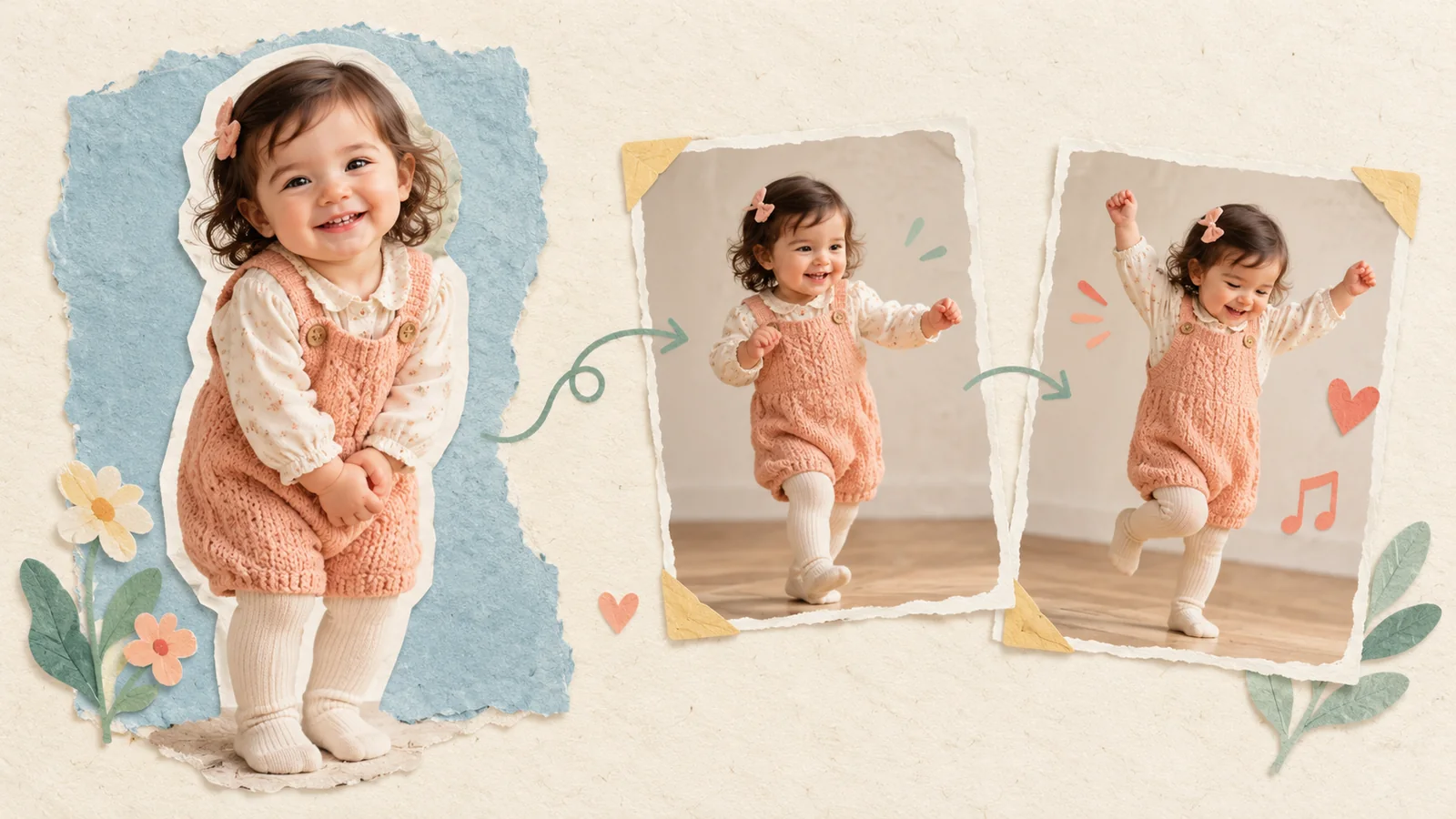
AI-generated editorial illustration, not a real customer photograph or proof of product results.
A favorite baby photo already carries a story: a tiny grin, an oversized cardigan, a moment the family remembers. An AI baby dance video gives that photograph another way to be enjoyed. Instead of recording a child performing a routine, you use a photo and a motion reference to create an imagined dance.
BabyDance brings those ingredients into a video generator. The useful starting point is a small, simple idea, not a complicated production. This guide walks through a first attempt, what to review, and how to make a more deliberate second version.
Start with one clear idea
Decide who the video is for before choosing a template. A birthday message might suit a cheerful wave. A family group chat might need only a short, funny sway. A keepsake for an album can be slower and quieter. Having a purpose helps you reject motion that looks impressive but does not fit the moment.
Keep the first project narrow: one child, one photograph, one reference. It is easier to understand the result when there are fewer moving parts. You can explore other styles after you have a version you like.
Choose a photo that is easy to read
Look for a sharp image with even light, visible facial features, and a simple background. A photo you love is not always the easiest photo for animation. Heavy shadows, a hand covering the face, or a tight crop can leave the generator with less useful information.
Inspect the actual file rather than judging a tiny thumbnail. Check the eyes, the outline of the head, the clothing, and the space around the subject. If the selected motion involves the whole body, choose a composition that gives the generator a clear view of the child and outfit. Our photo selection guide covers these choices in more detail.
Add a suitable motion reference
Open the video generator and choose the workflow that uses a character image and a motion reference. Model names and available controls can change, so read the labels shown in the current interface. Upload your chosen photo, then select a motion from the site or provide a suitable reference video.
For a first attempt, choose movement with a steady camera and a clear subject. Small steps and gentle arm movements are easier to assess than fast spins or frequent cuts. Make sure the reference is material you are entitled to use. A recognizable song, performer, or clip is not automatically yours to republish.
Check the settings before generating
Review the selected model, reference, duration-related information, and any displayed credit estimate. Do not assume that two different workflows use the same settings or cost. If a preview option is offered, read what it includes before choosing it.
Treat the reference as direction rather than a promise that every frame will be reproduced exactly. The output is generated imagery, and its interpretation can vary. A short, controlled first attempt gives you something concrete to evaluate without making the project more complicated than necessary.
Review the result beyond the first frame
Watch the whole clip once, then look more closely at the face, hands, clothing, and transitions between poses. A convincing opening frame does not guarantee that the middle of a turn will look natural. Pay attention to whether the background bends, an arm changes shape, or the face stops resembling the source photo.
Keep notes in plain language. For example, the face looks good until the turn, or the crop cuts off the raised hand. A specific observation is more useful than deciding that a result is simply good or bad. It tells you which input to change next.
Improve one ingredient at a time
If the face is unclear, try a cleaner photograph while keeping the motion reference unchanged. If the movement feels too abrupt, keep the photo and choose a calmer reference. Changing everything at once makes it hard to learn what helped.
Do not keep generating because you expect the next attempt to fix every issue automatically. Review the current inputs first. Sometimes a better crop or a less busy reference is a more useful change than another run with identical material. Our troubleshooting guide offers a structured way to compare attempts.
Finish with the audience in mind
Before downloading or sharing, check the version you are actually sending, including its watermark, framing, and sound. Keep the original photo separately so the generated clip never becomes the only record of the moment. If the video goes beyond a private family conversation, explain that it is AI-generated.
Your first BabyDance project does not need to look like a professional music video. A short, recognizable, cheerful clip can be enough. Start with one favorite photo, choose a modest movement, and let the result guide your next decision.